How to Set Up Claude Computer Use: A Practical Guide
Claude can now control your computer. Not in a vague, futuristic way. Right now. It can open your apps, click through websites, fill in spreadsheets, and carry out multi-step tasks while you get on with something else. Anthropic rolled this out quietly in March 2026 as part of the Claude desktop app
Claude can now control your computer. Not in a vague, futuristic way. Right now. It can open your apps, click through websites, fill in spreadsheets, and carry out multi-step tasks while you get on with something else.
Anthropic rolled this out quietly in March 2026 as part of the Claude desktop app. The feature lives inside something called Cowork mode, and there’s a companion feature called Dispatch that lets you send Claude instructions from your phone while you’re away from your desk.
I’ve been using it daily. The setup is straightforward, but there are a handful of settings buried in menus that are easy to miss. This guide walks you through everything, start to finish, in about five minutes.
What you need before you start
A few prerequisites:
- A Mac. Windows support is expected soon, but for now it’s macOS only.
- The Claude desktop app. Download it from claude.ai/download if you haven’t already.
- A paid plan. Either Pro ($20/month) or Max (from $100/month). Computer Use is available on both personal and team plans.
If you’ve already got the desktop app on a paid plan, you’re ready to go.
Turn on the right settings
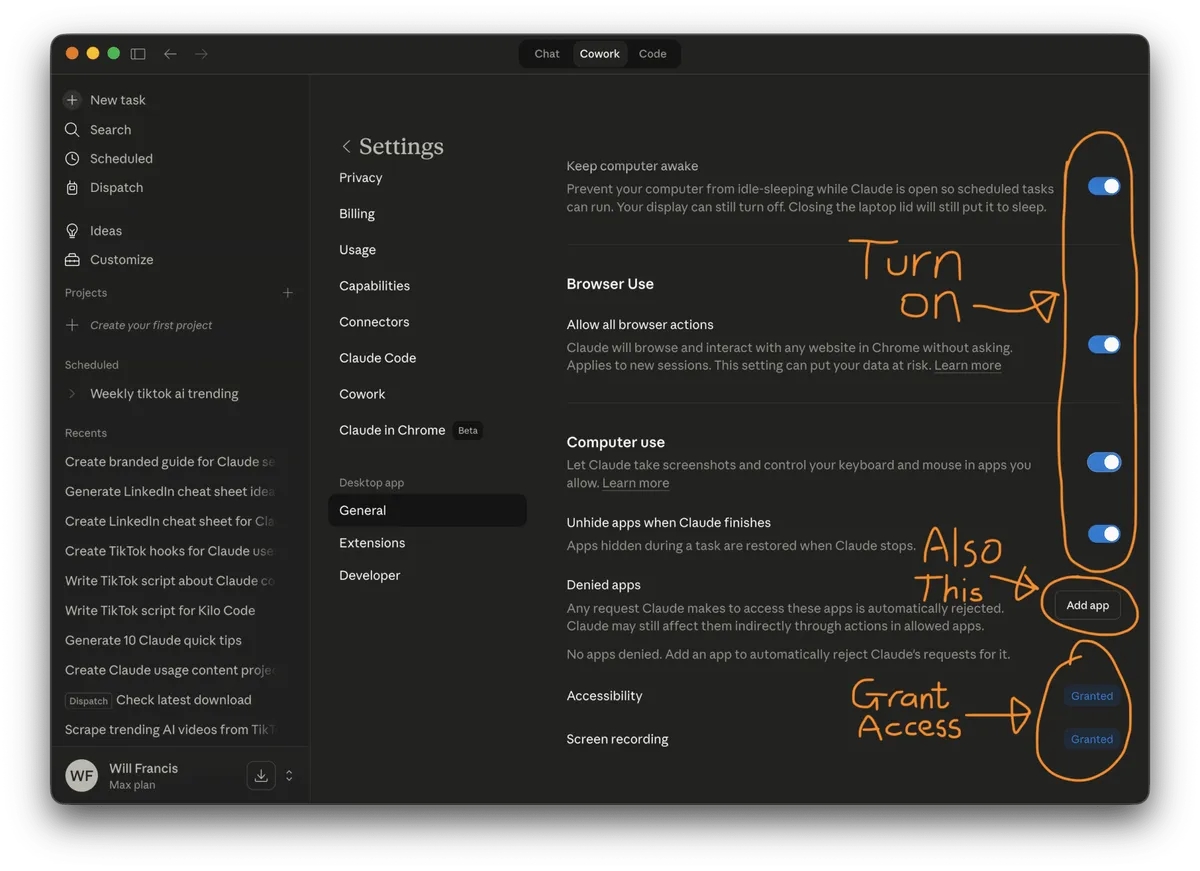
Open the Claude desktop app and click your name in the bottom left corner, then click Settings.
In the left sidebar, you’ll see a section called Desktop app. Click General. This is where the key toggles live:
- Browser Use: turn this on. It lets Claude browse and interact with websites in Chrome.
- Computer use: turn this on too. When you toggle it, you’ll see a confirmation dialog explaining what Claude will be able to do (take screenshots, control your keyboard and mouse). Read it and click Turn on.
- Accessibility and Screen recording: scroll down and grant both of these permissions. macOS will prompt you for them.
One thing worth doing while you’re here: look at the Denied apps section. You can add any app you don’t want Claude to interact with. I’d recommend adding your password manager at the very least.
With those settings turned on, you’ll see three tabs at the top of the Claude desktop app: Chat, Cowork, and Code. Click Cowork to enter the mode where Claude can work with your files, browse the web, and control your computer.
This is where the real work happens. You can type something like “Go to my Google Analytics in Chrome and tell me how many visitors I had yesterday” and Claude will open Chrome, navigate to GA, read the dashboard, and report back. It takes screenshots of your screen to understand what’s there, then clicks and types just like you would.
Connect your phone with Dispatch
This is the part that surprised me most. You can send Claude instructions from your phone while you’re out, and it will carry them out on your computer.
First, go to Settings > Cowork and make sure the Dispatch toggle is turned on.
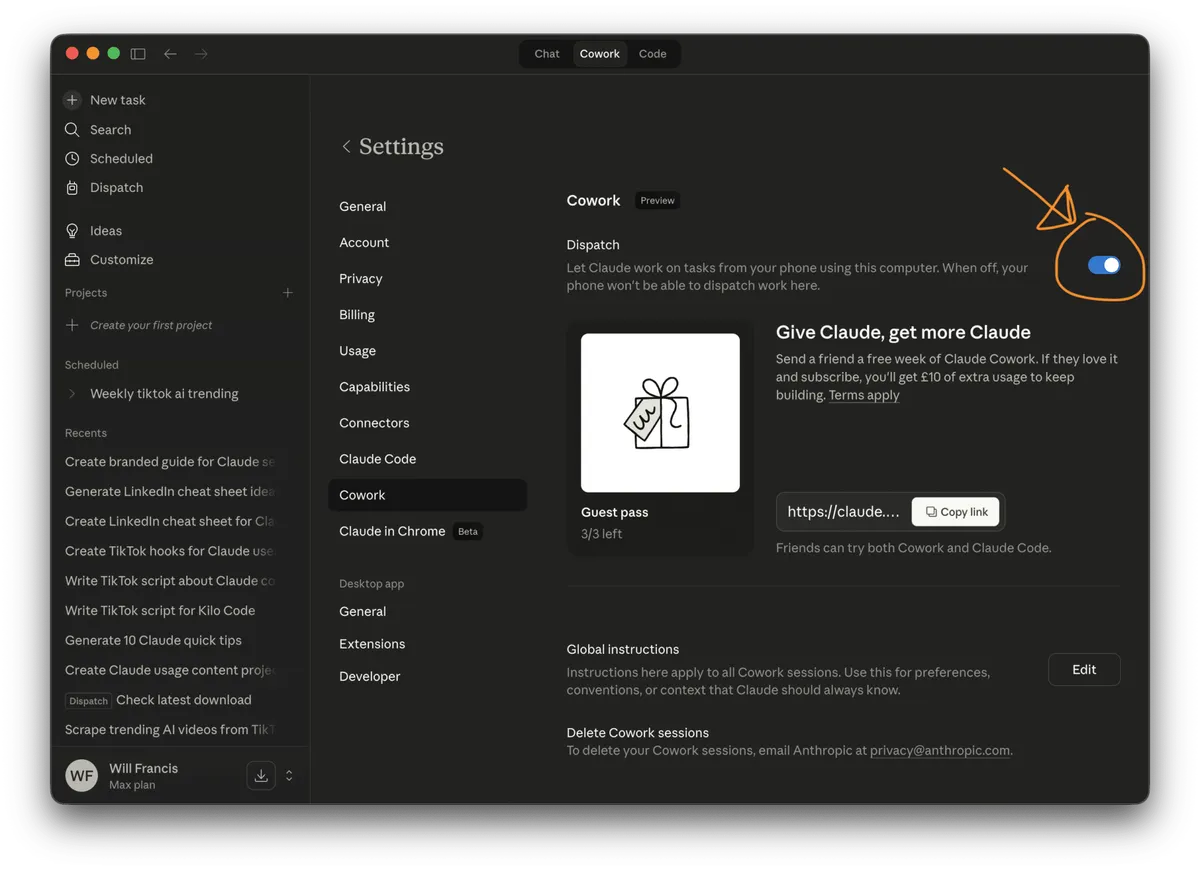
Then:
- Click Dispatch in the left sidebar of the main Claude window.
- Click Get started. You’ll see a setup checklist with toggles for file access, keeping your computer awake, Chrome access, and computer control. Turn them all on.
- Grant Accessibility and Screen recording permissions if macOS asks again.
- Click Finish setup.
- You’ll see a QR code. Scan it with your phone to download the Claude mobile app (or open it if you already have it). Make sure you’re signed into the same account on both devices.
- On your phone, open the Claude app and go to the Dispatch tab.
That’s it. You can now type a message to Claude from your phone, and it will get to work on your computer. You’ll see its progress in real time on both devices.
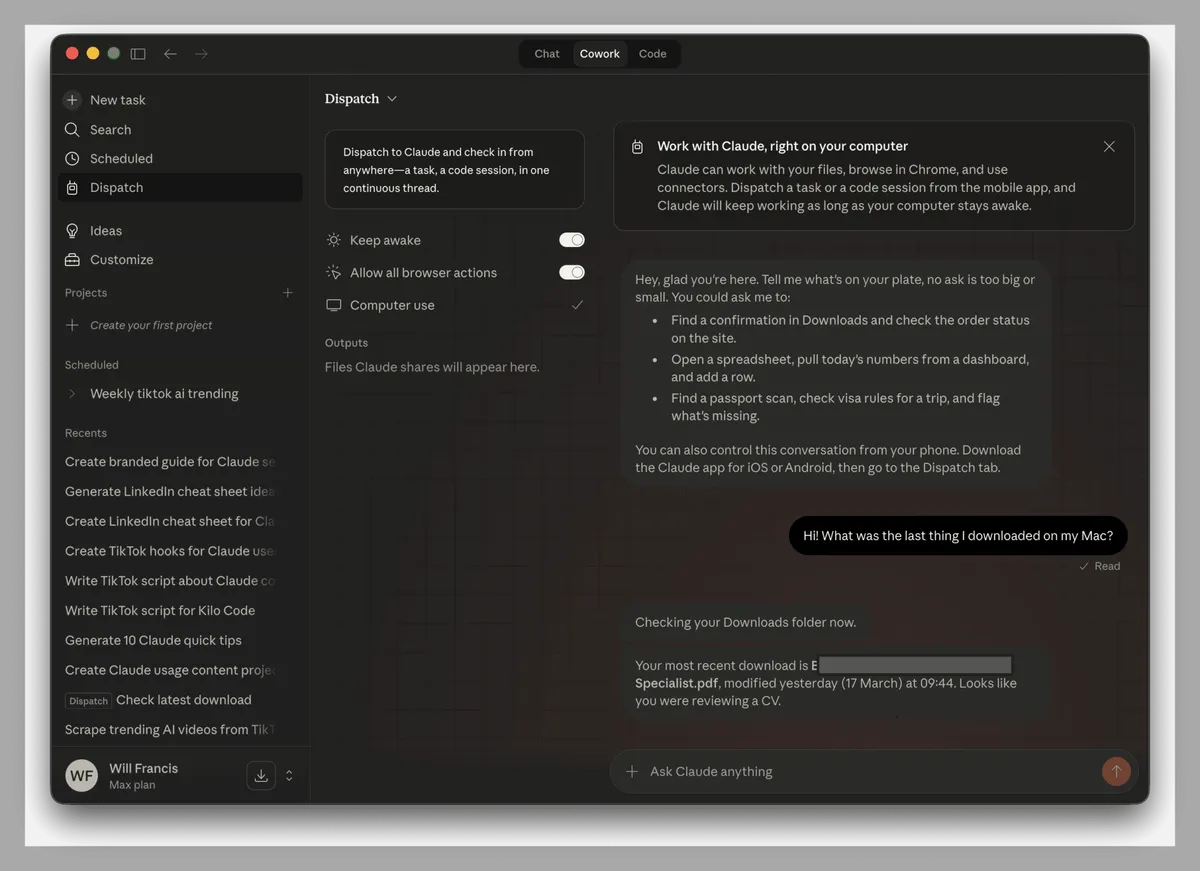
One important note: your computer needs to stay awake for Dispatch to work. The setup enables a “Keep awake” toggle that prevents your Mac from sleeping while Dispatch is active. If you’re planning to use this regularly, a Mac Mini running at home is a popular setup.
Practical things to try
Computer Use works best when you give Claude a clear task with enough context. Here are some real examples, roughly ordered from simple to more involved:
- Pull data into a spreadsheet: “Go to the Meta Ads Library, search for ads about [topic] in the UK, and create a Google Sheet with links to the top 10 results.”
- Find a freelancer: “Go to Fiverr, post a job for [task], then message the top 10 freelancers. Check my DMs and follow up on anything unanswered from the last 7 days.”
- Daily briefing: “Check my Google Calendar for today’s meetings and summarise my unread emails. Flag anything urgent.”
- Competitive research: “Go to [competitor’s website], look at their pricing page, and compare their plans to ours. Put the comparison in a table.”
A general tip: be direct. Tell Claude exactly what you want done and where. If it asks clarifying questions and you just want it to get on with it, you can say “Do everything without asking me until it’s done.” It responds well to that.
Set up scheduled tasks
Once you’ve tested a few manual tasks and know your prompts work well, you can set them to run automatically. This is where things get properly useful for day-to-day work.
- In the left sidebar, click Scheduled.
- Click + New task (top right).
- Give it a name and description.
- Write your prompt. Test it manually in Cowork first to make sure it works well.
- Choose a frequency: manual, daily, weekly, etc.
- Click More options to select the model (Opus 4.6 is the most capable) and pick a folder for any files Claude creates.
- Click Save. Make sure Keep awake is on so your Mac doesn’t sleep.
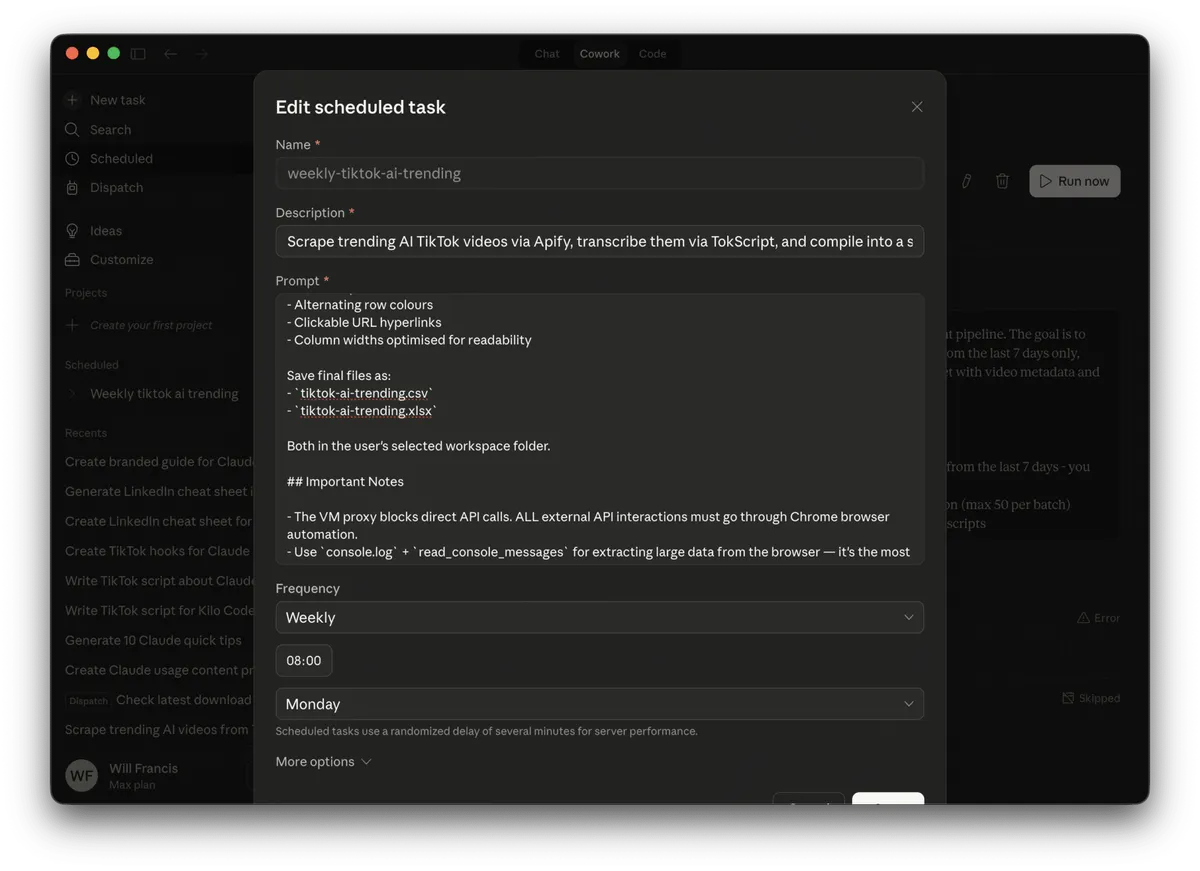
Here’s one of my actual scheduled tasks: every Monday at 8am, Claude scrapes trending AI TikTok videos, transcribes them, and compiles everything into a spreadsheet I can review over coffee. The prompt is detailed, but once it’s set up you never touch it again.
Some ideas to get you started:
- Daily briefing at 7am: summarise your calendar, emails, and Slack messages
- Weekly competitor scan: check competitor websites or social accounts for changes
- Social media audit: check your analytics dashboards every Monday morning
- Invoice follow-up: check your accounting app for overdue invoices and draft reminders
Getting the most from it
This is still early days, but it’s already practical enough to save real time. A few things I’ve found helpful:
- Start simple. Try a single-step task first, then build up to multi-step workflows.
- Be specific. “Go to my Substack dashboard and check yesterday’s subscriber numbers” works better than “check my newsletter stats.”
- Watch it work the first few times. You’ll learn what it handles well and where it needs clearer instructions.
- Close sensitive apps before giving Claude computer access. Add your password manager to the denied list.
- Keep your prompts. When you find one that works well, save it as a scheduled task or keep it somewhere handy.
Computer Use is still technically a research preview, so start with low-stakes tasks and build confidence from there. But if you’ve been looking for a way to offload repetitive computer work, this is the most practical option I’ve found.